

Launch Profiles#
Launch profiles define the way Visual Studio Code runs and debugs the project.
launch.json#
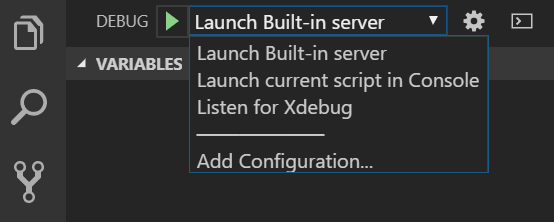
Visual Studio Code stores launch configurations in a launch.json file located in the .vscode subfolder of a workspace (the project root folder). To select, add, or modify configurations, open the Run and Debug side panel.
Listen for Xdebug (Local or Remote Debug)#
The following profile initiates debugging of an already running PHP application. The debugger waits for an Xdebug connection on a specified port. PHP Tools does not start any web server. This is the most common debugging scenario and requires that you correctly set up php with the xdebug extension.
{
    "name": "Listen for Xdebug",
    "type": "php",
    "request": "launch",
    "port": 9003,

    "pathMappings": {
        "\\remotepc\Shared\Test\": "${workspaceRoot}\src",
        "\\test": "C:\Users\usr\Documents\VSCode\src"
    }
}
Press F5 or Run and Debug to start listening for Xdebug connections.
portis the incoming Xdebug port number. It can be a single number (for example9003), an array of numbers (for example[9003, 9000]), or it can be omitted so the debugger uses the port specified in the"php.debug.port"setting.pathMappingsis used for remote debugging. This setting maps server paths to local paths so the debugger matches breakpoints on the local machine with the server paths.hostnamespecifies whether to listen on IPv4 (0.0.0.0) or IPv6 (::). By default, the debugger listens on IPv4 (0.0.0.0) and tries to listen on IPv6 (::) as well. On Linux systems, listening on both networks might not be allowed, sohostnameshould be specified explicitly.
Listen on IPv6 on Linux#
On Windows, the debugger listens on both IPv4 and IPv6 at the same time. On Linux, the protocol should be specified explicitly. The following launch profile listens on IPv6 with the default ports (9003, 9000):
If hostname is not specified, the debugger listens on IPv4 by default.
DBGp Proxy settings#
The multi-user debugging scenario is described in detail in the tutorial for Visual Studio. In VS Code, the configuration is placed directly into launch.json.
The launch configuration for Listen for Xdebug together with dbgpProxy is listed below:
{
    /* listening for Xdebug connection: */
    "name": "Listen for Xdebug",
    "type": "php",
    "request": "launch",
    "port": 9003,

    /* DBGp Proxy configuration: */
    "dbgpProxy":
    {
        "enable": true,
        "host": "127.0.0.1",
        "port": 9002,
        "ideKey": "MyVSCode"
    }
}
enableturns the connection to the DBGp Proxy server on or off.hostandportspecify the address of the DBGp Proxy server.ideKeyis used to register the debug session within the DBGp Proxy. If not set, the current user name is used instead.
Upon running the project (F5 or Run and Debug command), the following text gets logged in the Debug Console:
DBGp Proxy IDE key
If not specified, the DBGp Proxy IDE key is set automatically to the current user name. It is also logged in VS Code's Output window. When accessing the web, this IDE key must be used in the URL (for example http://example.org?XDEBUG_SESSION_START=MyVSCode), the xdebug.idekey php.ini directive, or the DBGP_IDEKEY environment variable (see xdebug.org for more details). This lets the proxy server know which machine to connect back to with the debug session.
Ignored Paths#
To ignore custom paths from being stepped into and breaking on exceptions, specify launch setting.
Debugger won't step into and won't break on handled exceptions within files matching specified glob patterns.
Example with the "exclude" configuration:
{
    /* listening for Xdebug connection: */
    "name": "Listen for Xdebug",
    "type": "php",
    "request": "launch",
    "port": 9003,

    /* ignore files in 'vendor' folder from being stepped into and exceptions */
    "exclude": [
        "*/vendor/*"
    ]
}
Excluding everything except
To ignore everything except a specified path, use the negation prefix !, e.g.:
Built-In PHP Server#
The following profile starts the PHP built-in web server. The server is started only if the runtimeArgs contains the parameter -S that defines the location and port of the server.
Sample configuration:
{
    "name": "Launch Built-in server",
    "type": "php",
    "request": "launch",
    "runtimeArgs": [
        "-S",
        "localhost:8888",
        "-t",
        "\\remotepc\Shared\Test"
    ],
    "port": 9003,
    "serverReadyAction": {
        "action": "openExternally"
    }
}
Additionally, there are the following settings:
- "port" allows you to specify the Xdebug port number. This value is used set to configure the built-in server and the VSCode debugger together. The default value is specified with configuration
php.debug.portwhich defaults to[9003, 9000]. It overwrites the settingxdebug.remote_portin yourphp.ini. - serverReadyAction can be set to automatically open browser once the debug starts. More at code.visualstudio.com - serverReadyAction.
Built-In PHP Server with router.php#
The following lets you run the built-in PHP server with a router script. It is equivalent to the Launch Built-in server configuration, but the router.php path is added to the runtimeArgs array:
{
    "name": "Launch Built-in server with router script",
    "type": "php",
    "request": "launch",
    "runtimeArgs": [
        "-S",
        "localhost:8888",
        "-t",
        ".",
        "./router.php"
    ],
    "serverReadyAction": {
        "action": "openExternally"
    }
}
Console Application#
This profile runs the PHP project as a console application inside VS Code's Debug Console. By default, it starts the file currently opened in the editor.
{
    "name": "Launch current script in Console",
    "type": "php",
    "request": "launch",
    "program": "${file}",
    "cwd": "${fileDirname}",
    "externalConsole": false
}
program: Specifies a file absolute or relative to the workspace directory. The value${file}means the file currently opened in the editor.externalConsole:trueto run the program in a separate command line window. Defaults tofalseto output the program in VS Code's Debug Console.port: the Xdebug port number. This value must match the setting inphp.ini. Defaults to9003.
Profiling Mode#
Profiling collects data about your application and saves it to a directory specified with the xdebug.output_dir PHP ini setting. Add "profile": true to profile requests and console applications. Note that "profile" cannot be used when only listening for Xdebug.
Example:
{
    "name": "Launch Built-in server & Profile",
    "type": "php",
    "request": "launch",
    "runtimeArgs": [
        "-S", "localhost:8888", "-t", "."
    ],
    "noDebug": true, // <-- disable debugging
    "profile": true, // <-- enable profiling
    "port": 9000,
}
PHP Version#
The launch configuration option "phpVersion" allows choosing which PHP will be used to run and debug the project.
It is possible to define more launch configurations, each with a different PHP version. While the workspace assumes one PHP version at a time (see php.version setting), launch configuration can use a specific PHP to be used for built-in web server or a console application.
Example:
{
    "name": "Launch Built-in Server with PHP 8",
    "type": "php",
    "request": "launch",
    "runtimeArgs": [
        "-S",
        "localhost:8888",
        "-t",
        "."
    ],
    "phpVersion": "8.0"
}
Note: In this example, it is assumed that the PHP 8.0 is installed on the local machine.
Related Links#
- Compound Launch and Debug - Start and debug more built-in servers at once.